Release · 3 Nov 2026
OpenCycle 27.1
Compliance assessments judged night by night, one Inbox for notices and threads, clearer proposals, a risk check that confirms the site's location, and a map of your own sites.
What changed
Compliance assessments, night by night
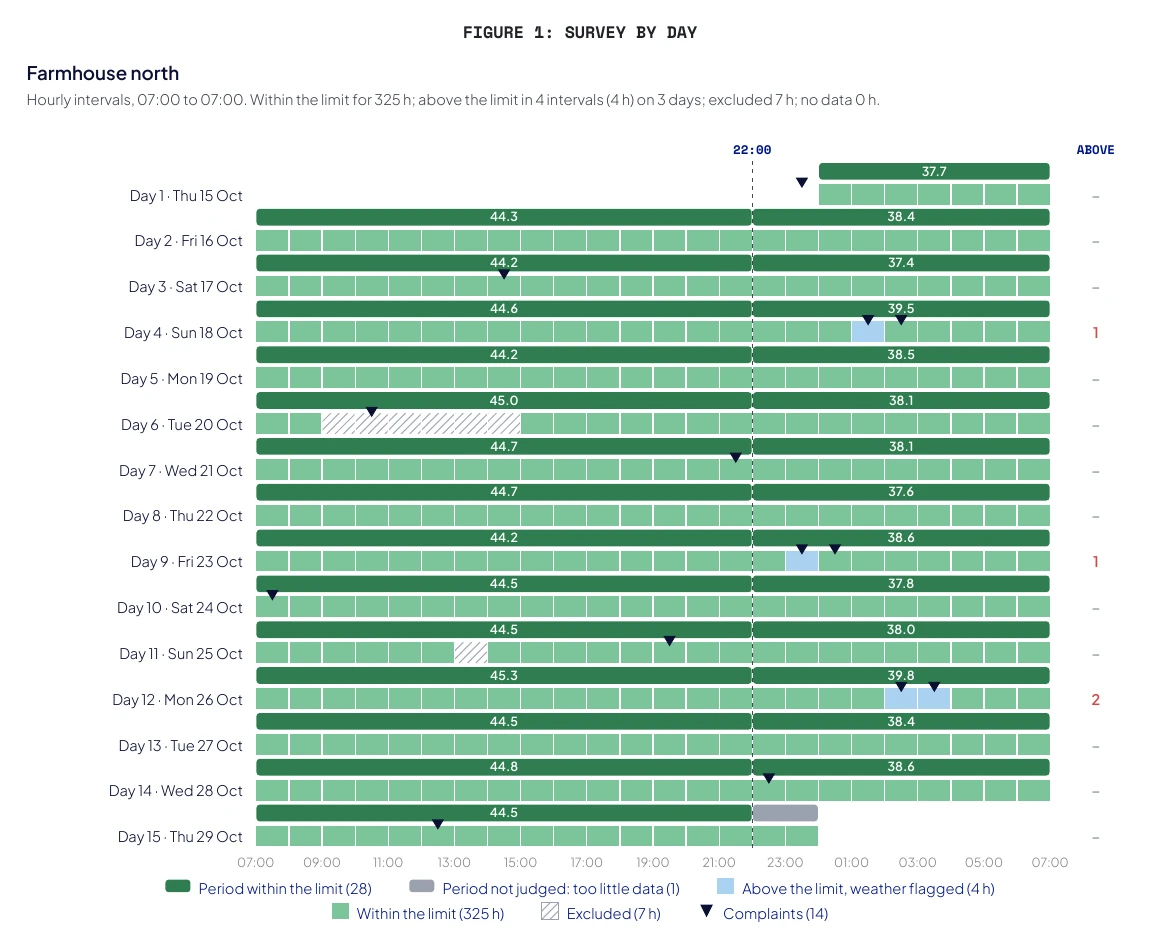
The Comprehensive Compliance Assessment replaces the Comprehensive Sound Survey. It judges each day and night period, gives each night its own graph and brings in your permits, complaints and resident log.Judged by period. Each day and night period is judged on its Leq once it has 3 valid hours. The report shows the worst day and night, and Hours above the limit replaces the hourly tables.A page for each night. Night graphs run noon to noon, with an Events lane for complaints, resident log entries and site events. A summary grid gives each residence one row per night. Resident log entries never change a result.Permits and complaints. A permit's limits judge each 15-minute LAeq and LCeq. Complaints show as an anonymized log by area and night, and the report can compare the period before an event with the period during it.
One Inbox for notices and threads
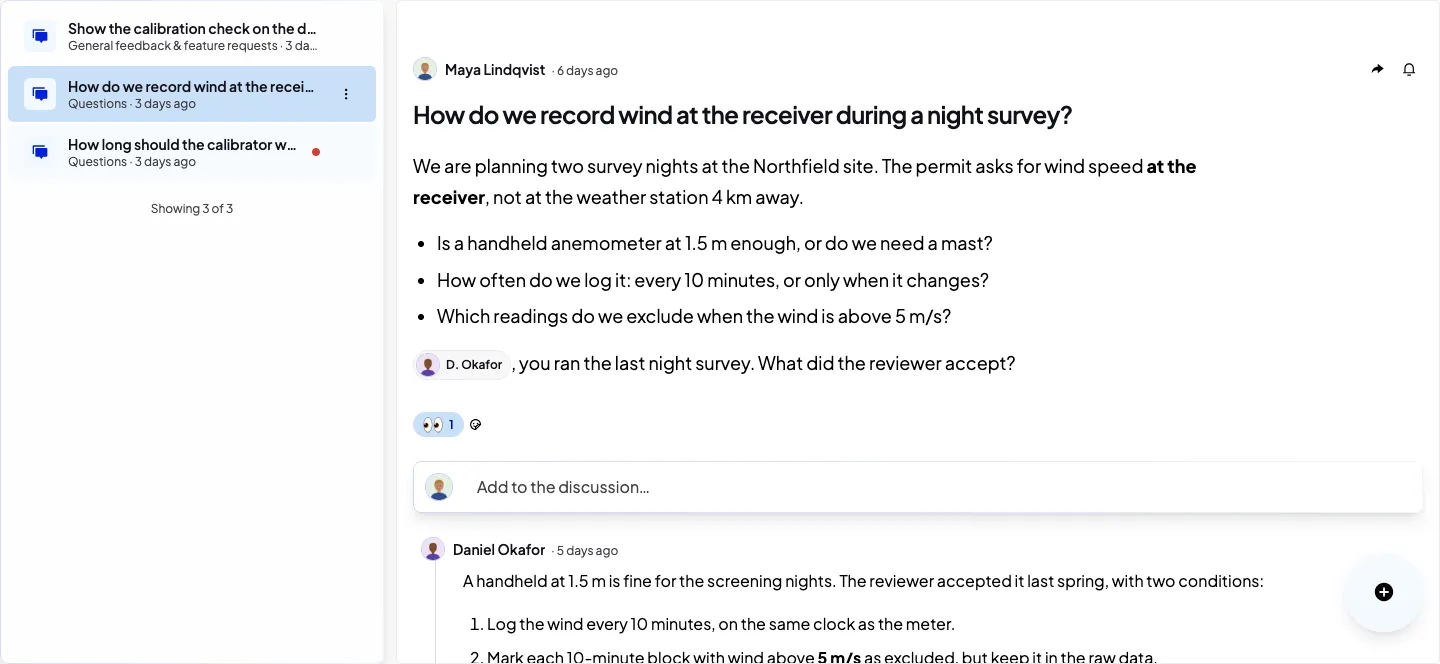
Inbox holds your notifications and your threads, each on its own tab with Mark all as read. Every notice now says what happened and to which record, in the app and in email.Threads beside the list. A thread opens next to the list. Search the list, or narrow it with Unread only and Thread on.Notices that say what happened. The subject names the event and the record, such as Agreement declined: Pad 7 survey, and the email matches the Inbox. A report email shows the result and who stamped it, with the PDF attached when it is 10 MB or less.Two new notices. Report approved tells the people on the phase, and the requisitioner hears when a corrected version of a report is issued.
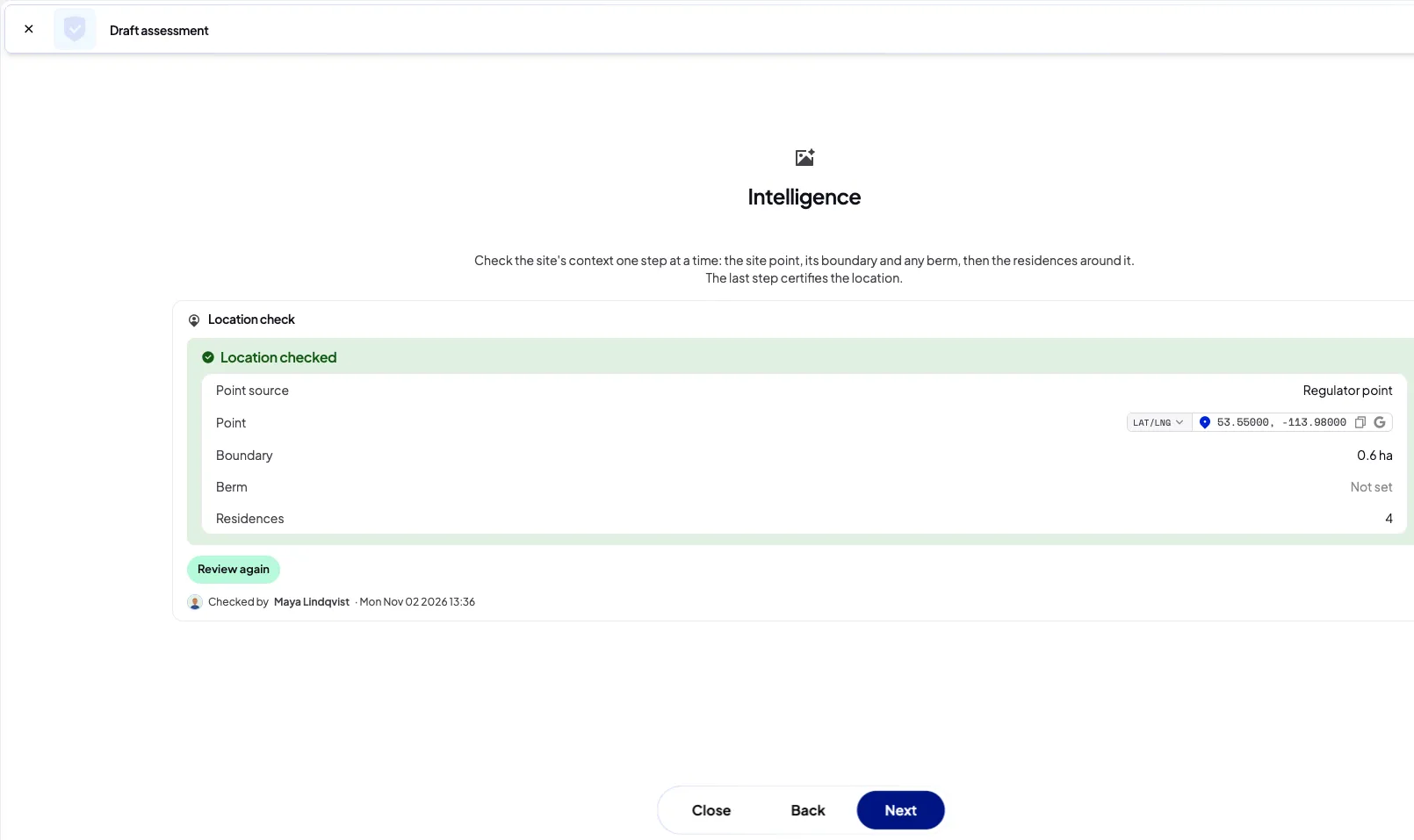
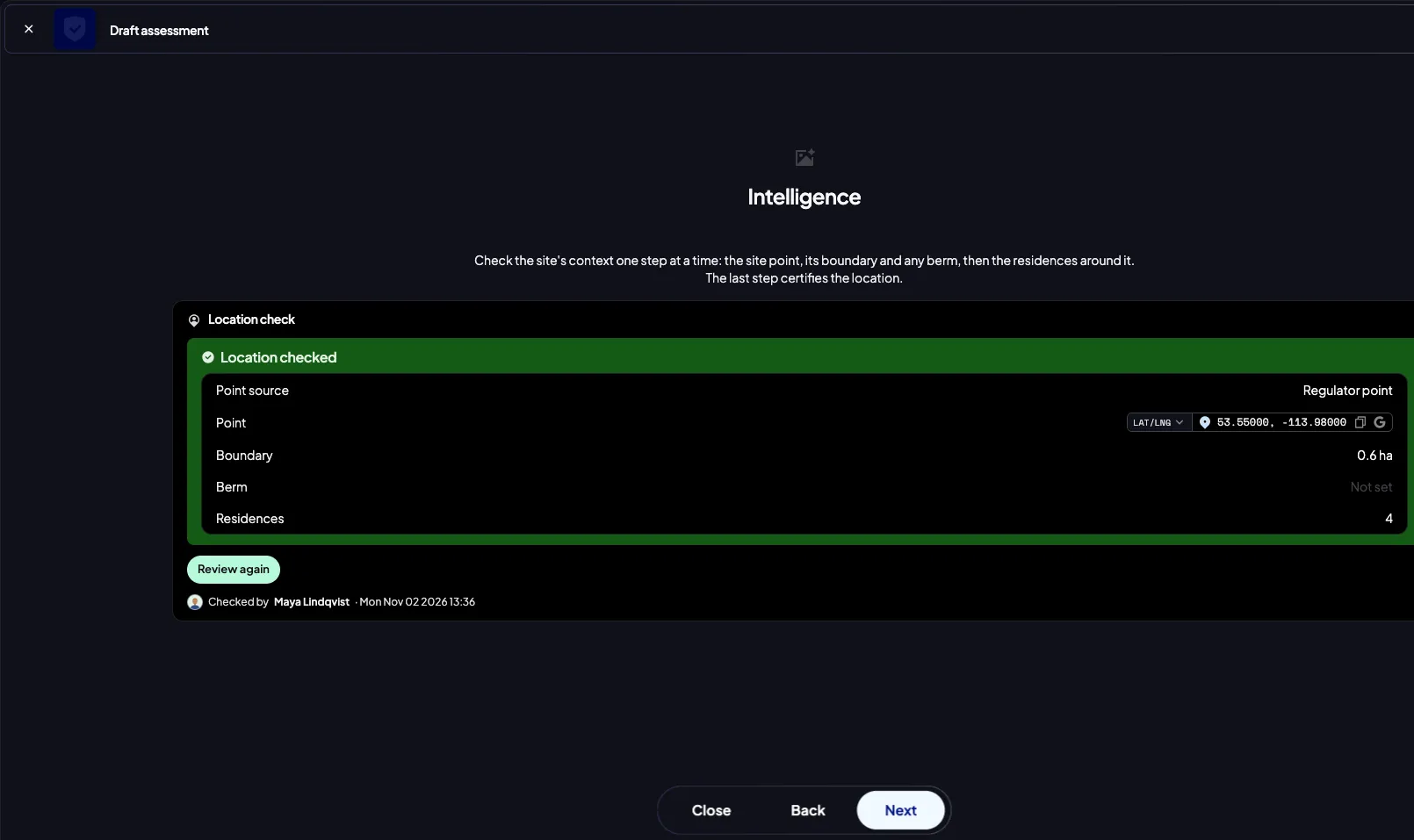
Assess risk checks the site's location
Assess risk now walks you through the site point, the boundary, the berm and the residences on a map. Done reviewing certifies the location and records your name and the time.Draw or upload a boundary. Choose Draw on map, or Upload file for GeoJSON, KML, KMZ, GPX, a shapefile or DXF.A check that stays current. The site's Location check shows Checked by, and reads Boundary changed since the last check when the boundary or berm changes after it.Fewer questions. Assess risk has no scenario step, and Review before submitting shows the regulators. Updates to your records lists the site details your answers change. Without edit access, they go on the request as suggestions.
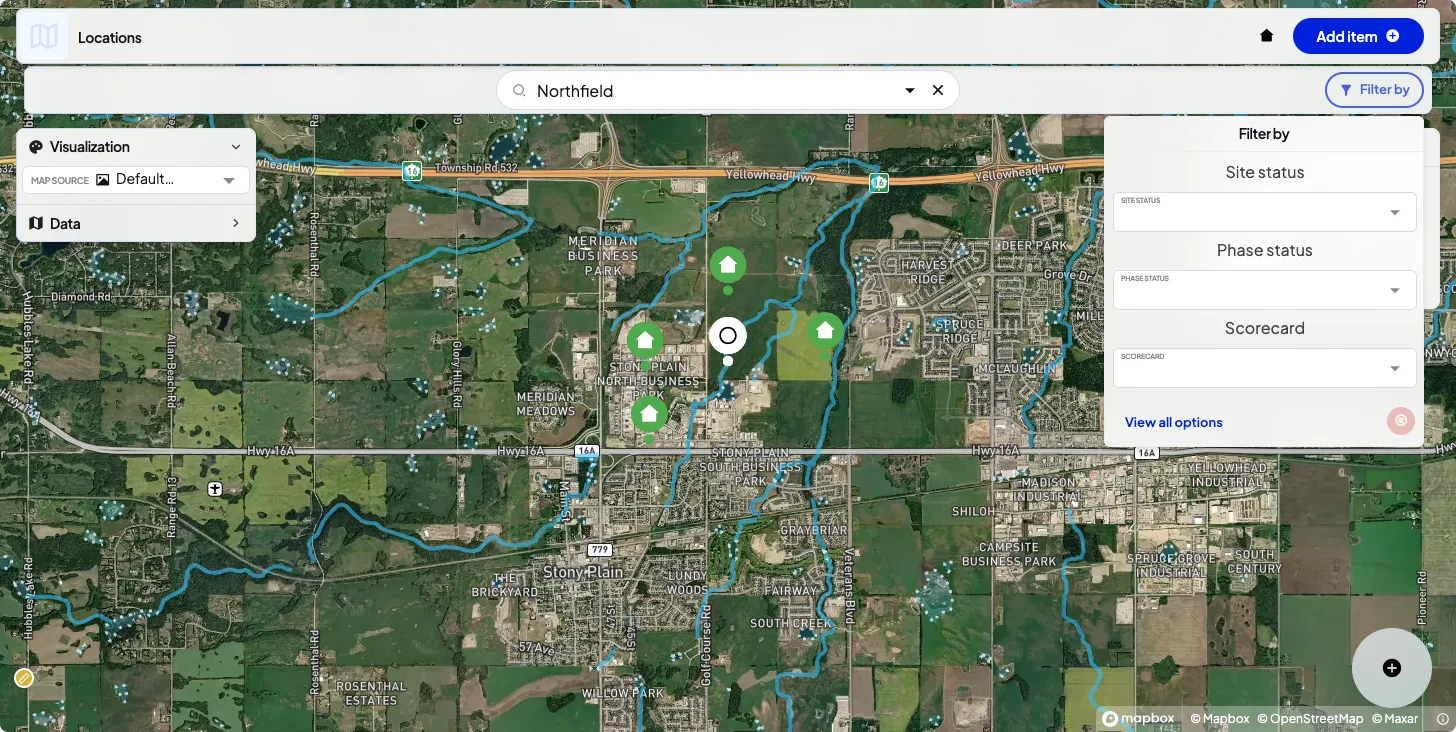
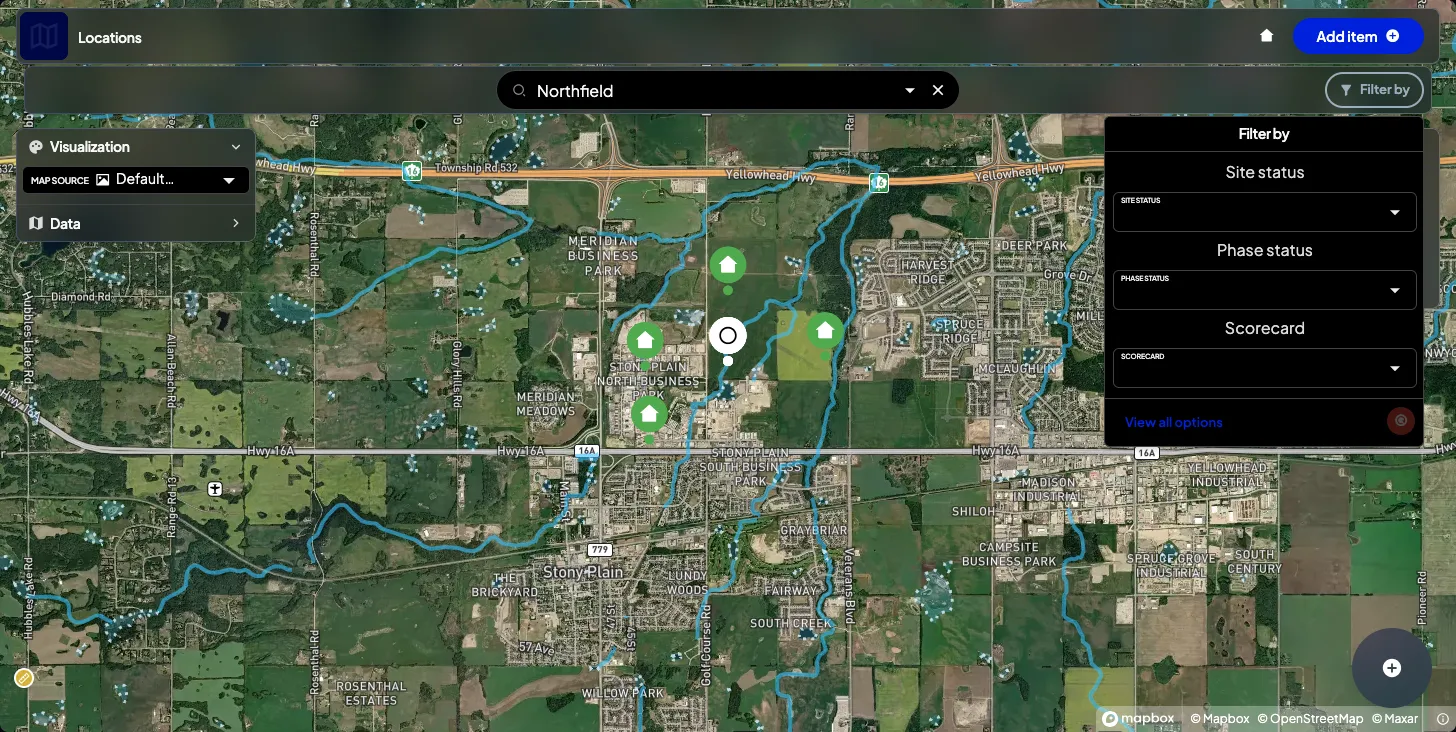
Your sites on the map
Locations and Sites show your team's sites. Filter them by Site status, Phase status and Scorecard, search by OC-ID, and read each pin's status from the ring around it.Hover cards on a site's map. Hover a pin to see its card. A location shows one line, LSD or DLS where it has one, with View on Google Maps.Layers. The Layers panel adds roads, rail, aerodromes, pipelines and power lines, each with a legend and credits.
Agreements at a glance
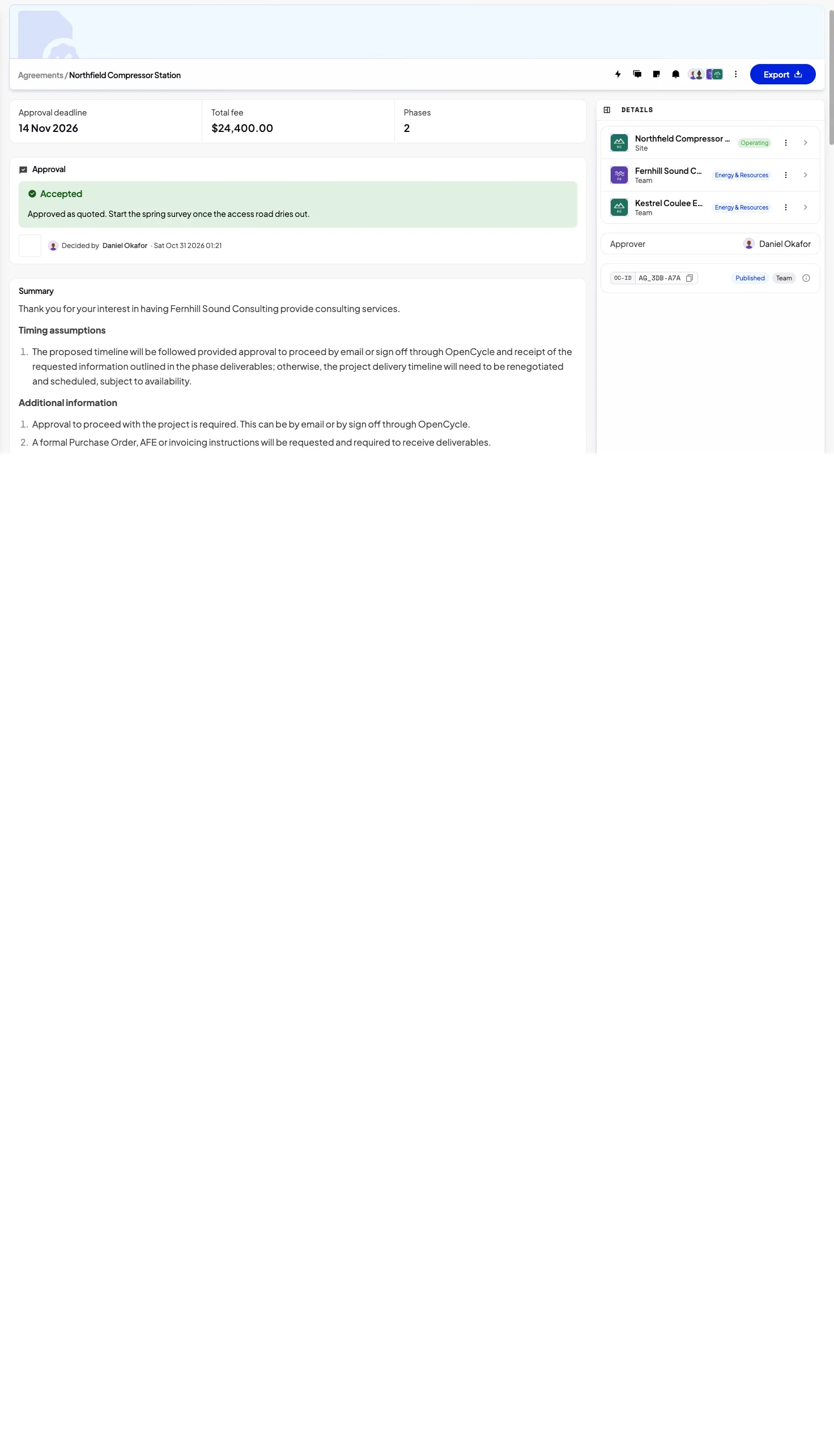
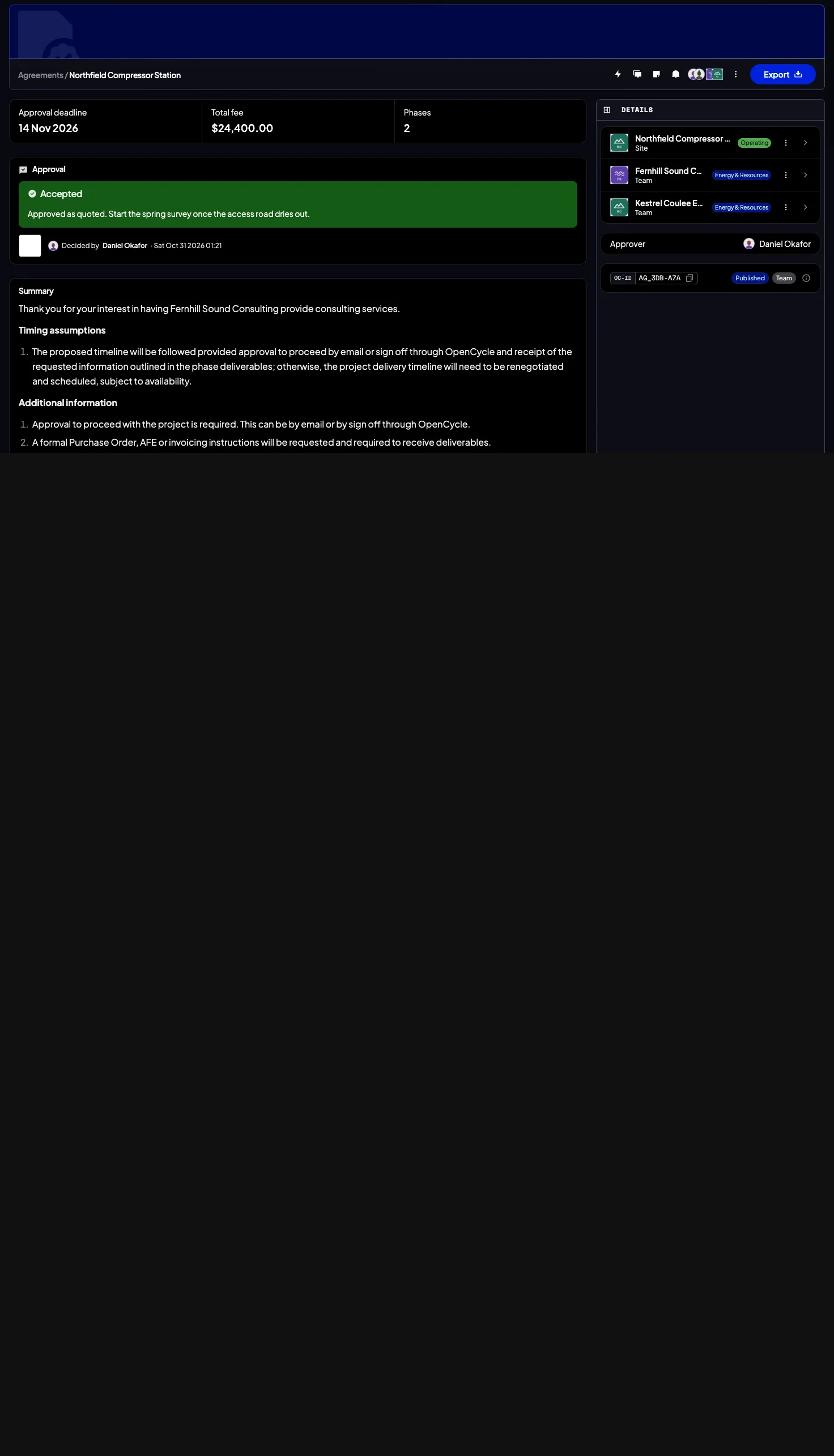
An agreement's page leads with its Approval deadline, Total fee and phases, and asks its approvers to approve or reject it. Fees print as tables with a subtotal, and the PDF shows the phase scope.Maps that match Locations. Site and phase lists set to With map show each site's map, and the All sites map puts every site on one map with its site groups outlined, on the page and in the PDF.Only approvers decide. Approve proposal and Reject show only to approvers, and approvers and issuers always follow the agreement.
Site IDs in your own format
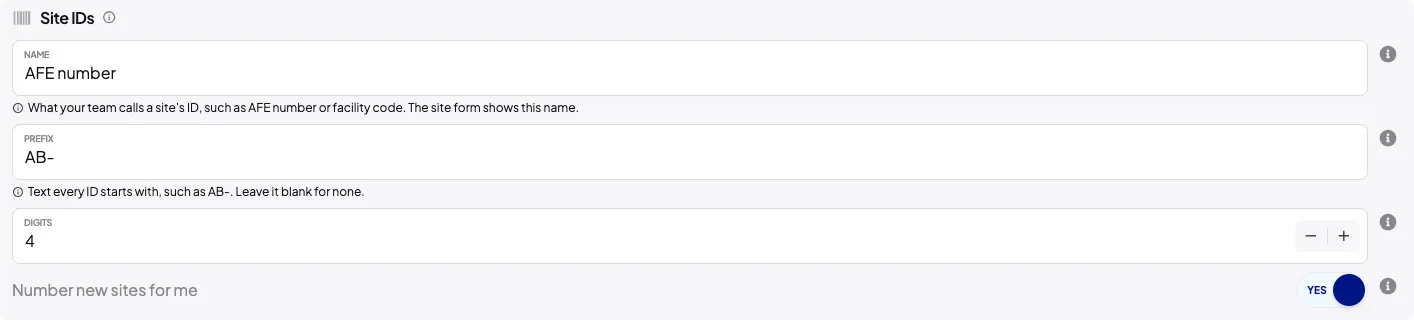
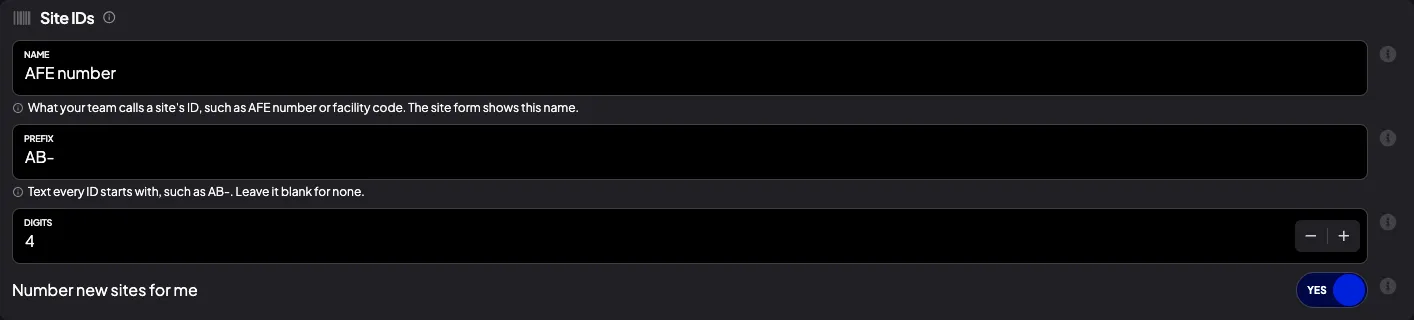
In Team → Profile, under Site IDs, name your site ID (such as AFE number) and set its prefix and digits. Turn on Number new sites for me and each new site gets the next ID.Checked as you type. The site form says when an ID doesn't follow your format or another site already uses it, and shows the site's OC-ID and regulatory ID to copy.
Reports
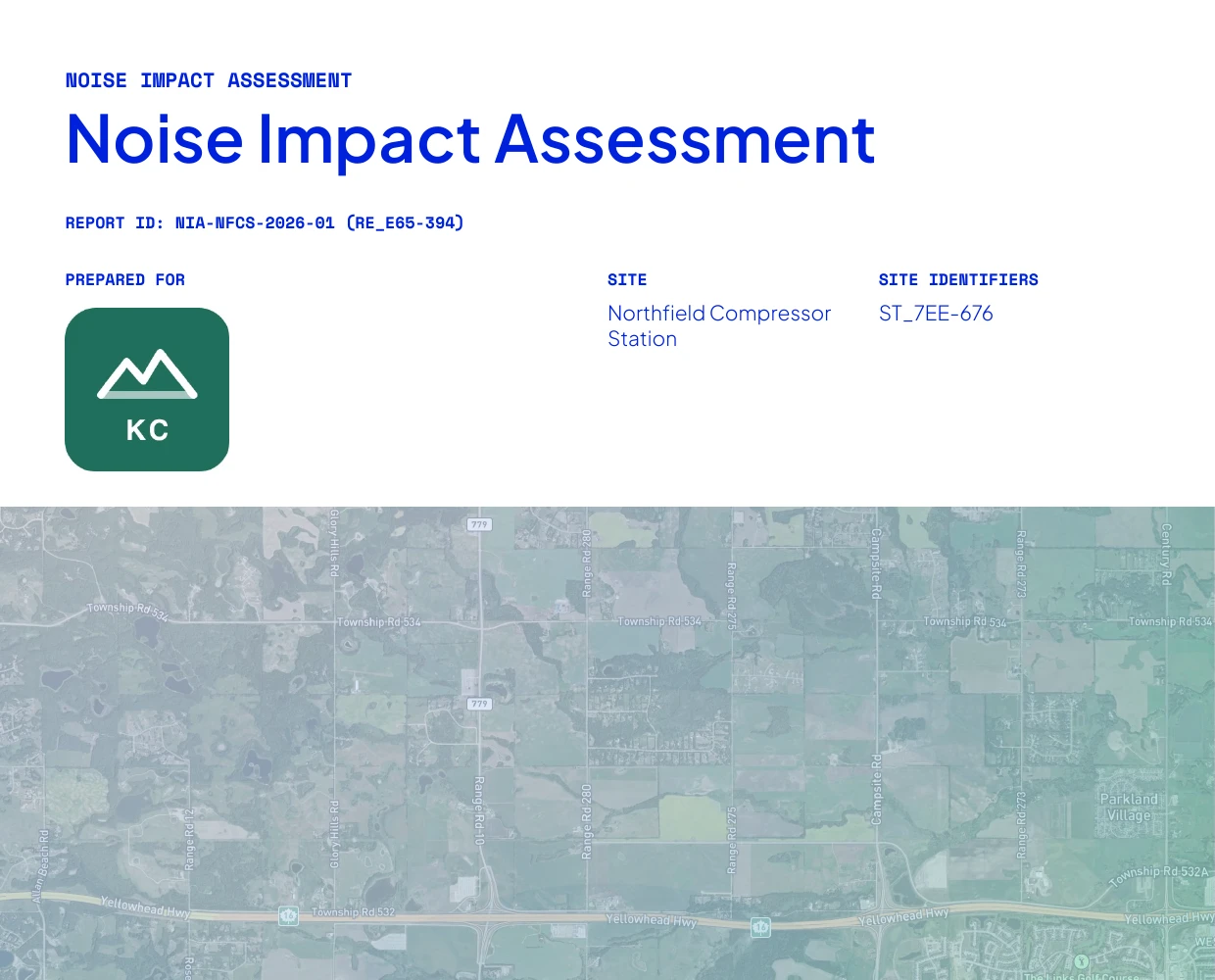
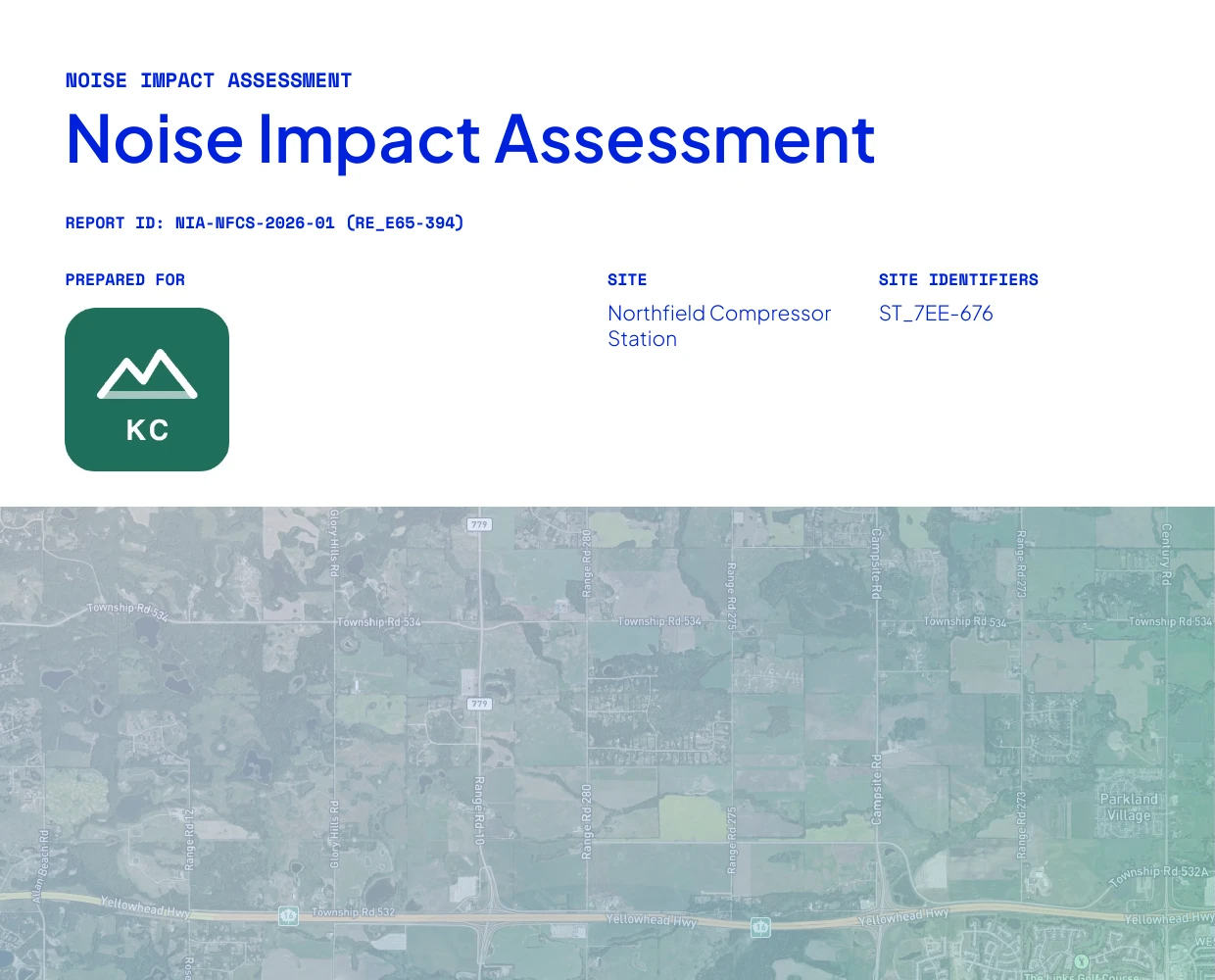
Recalled reports. A report our team recalls shows In internal review, and its files stay closed until a corrected version is approved. You then get the corrected version.The next report, named. An NIA over the limit names the report that fits what drives the result: Field Assessment, VFA, Mitigation Assessment or SSNMP. Generate report starts from the site's regulator, marked Site's regulator.Easier to read. The NIA and Screening NIA follow the Comprehensive Compliance Assessment's layout. A large NIA prints its counts and every adjacent site, and headings and legends are sized for paper. Report maps keep the satellite image's shape and print sharp, with each distance label on its mark.
Sites
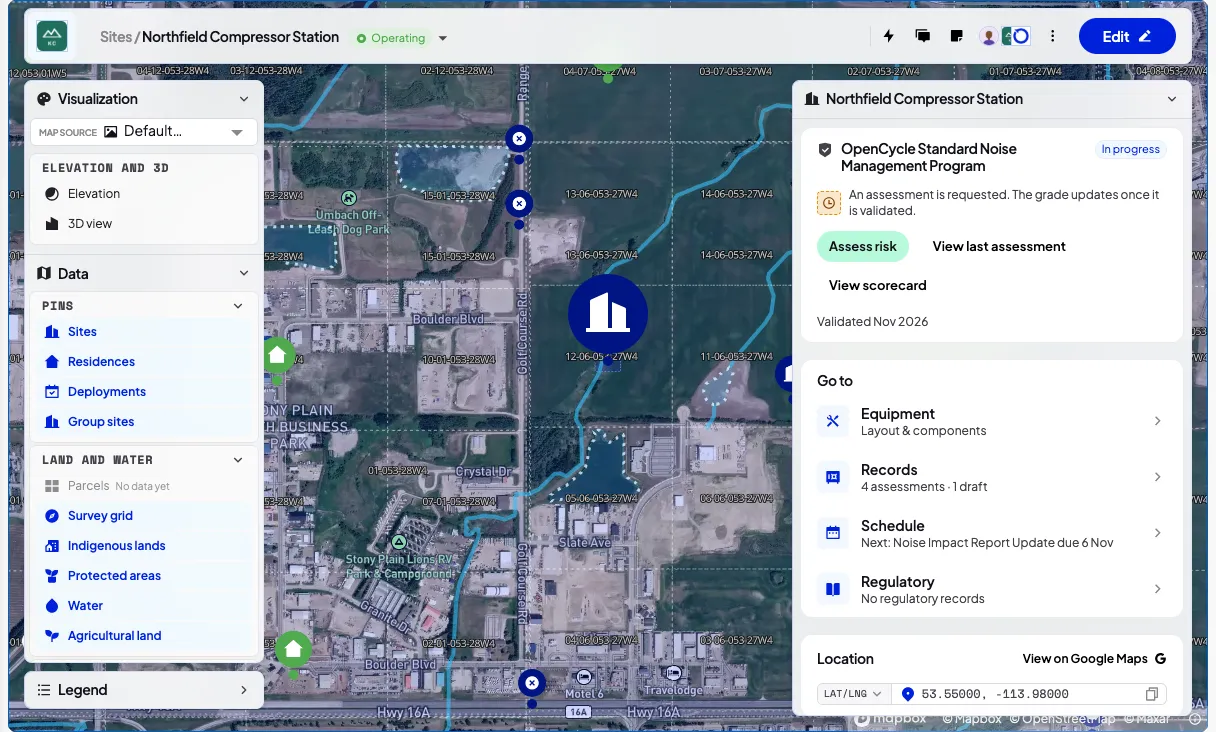
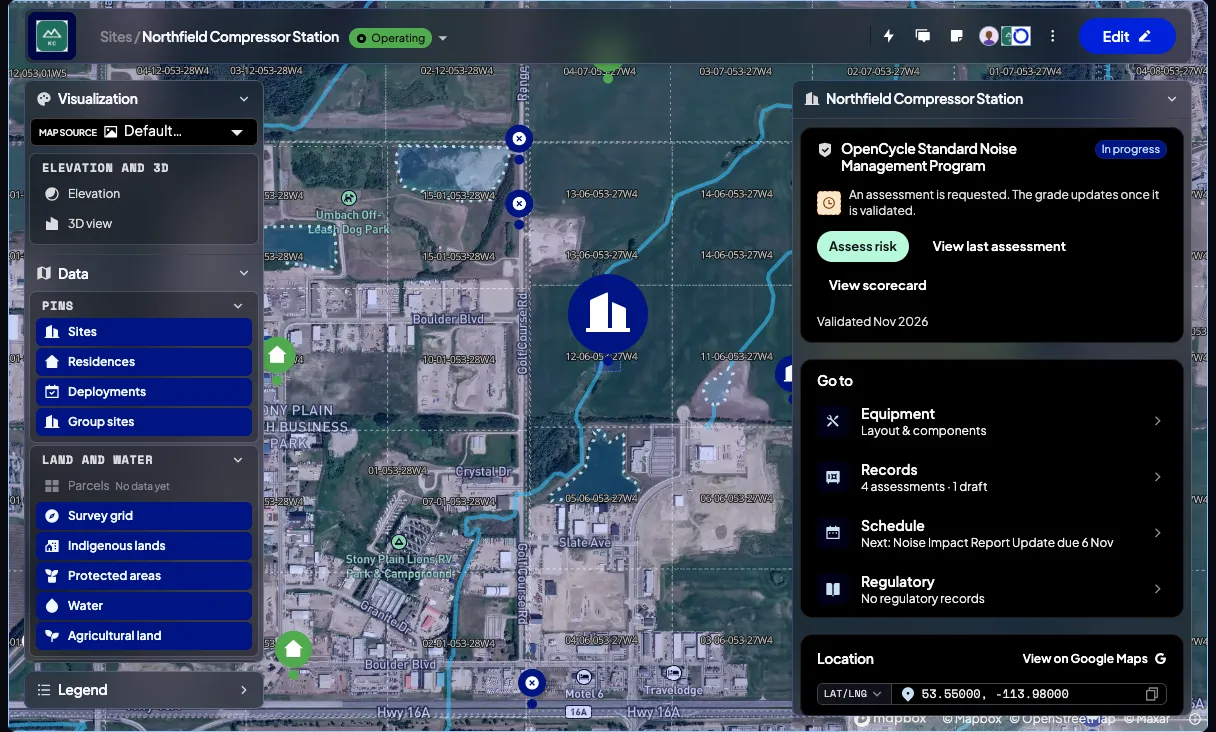
Go to on every site. A site's panel opens with Go to, which shows counts, the next phase, overdue items in red and the program grade.Location details. Site details show the coordinates, LSD and DLS; select one to copy it. The site form has Status cards with a description each, and equipment counts have − and + buttons.Sectors. Each sector choice has a one-line description. Set a Default site sector under Site defaults in Team → Profile, and new sites start with it.


Notifications and email
A weekly digest. Every Monday, one email gathers the notices you haven't opened, grouped by record, starting with Needs you. In Account → Notifications, each notice has Right away, Weekly digest or Off.See who hears about a save. Before you save, the confirmation shows who gets access and who hears about it. Turn off anyone who shouldn't follow, or turn off Notify people about this save.Following. Account → Notifications lists everything you follow, with Unfollow. Due-date reminders keep coming while you are responsible for the record.
The schedule
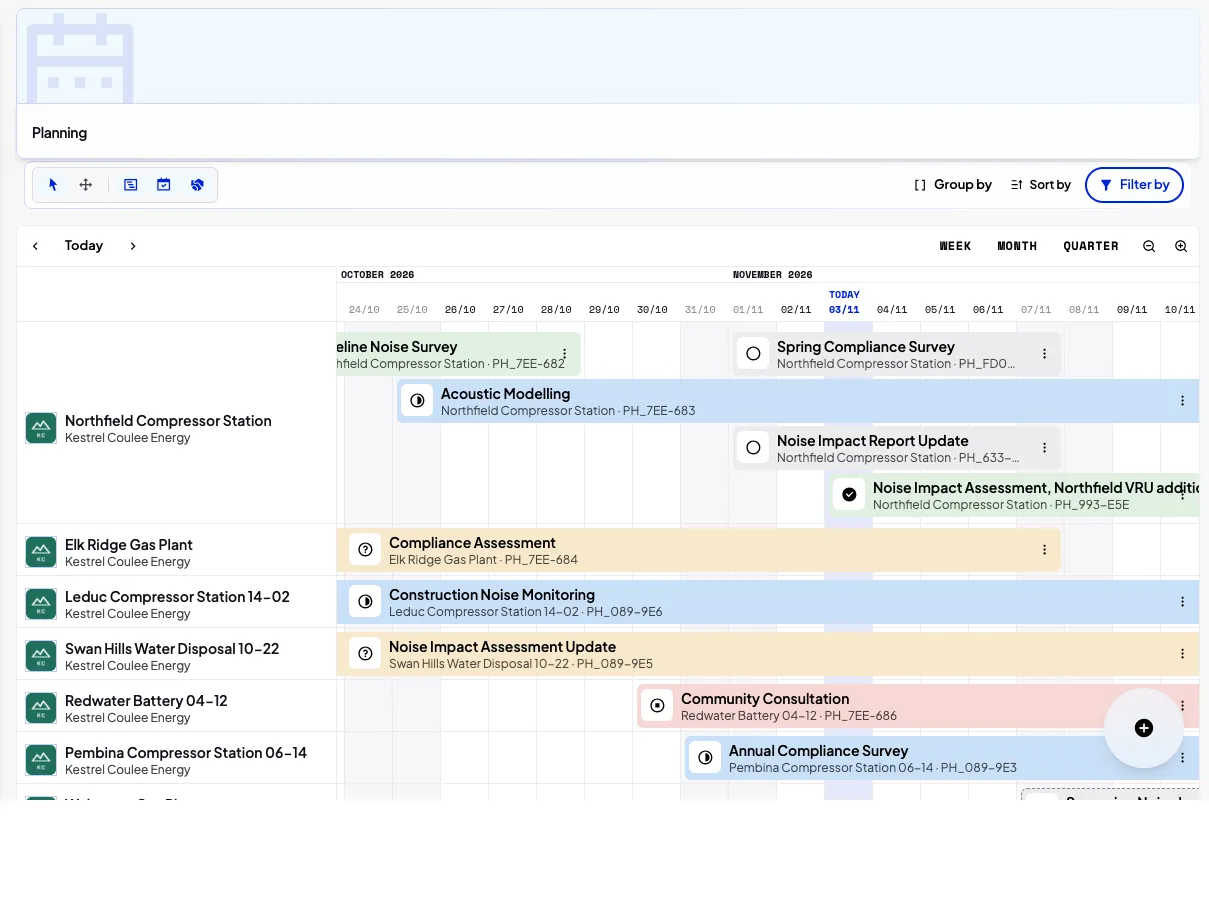
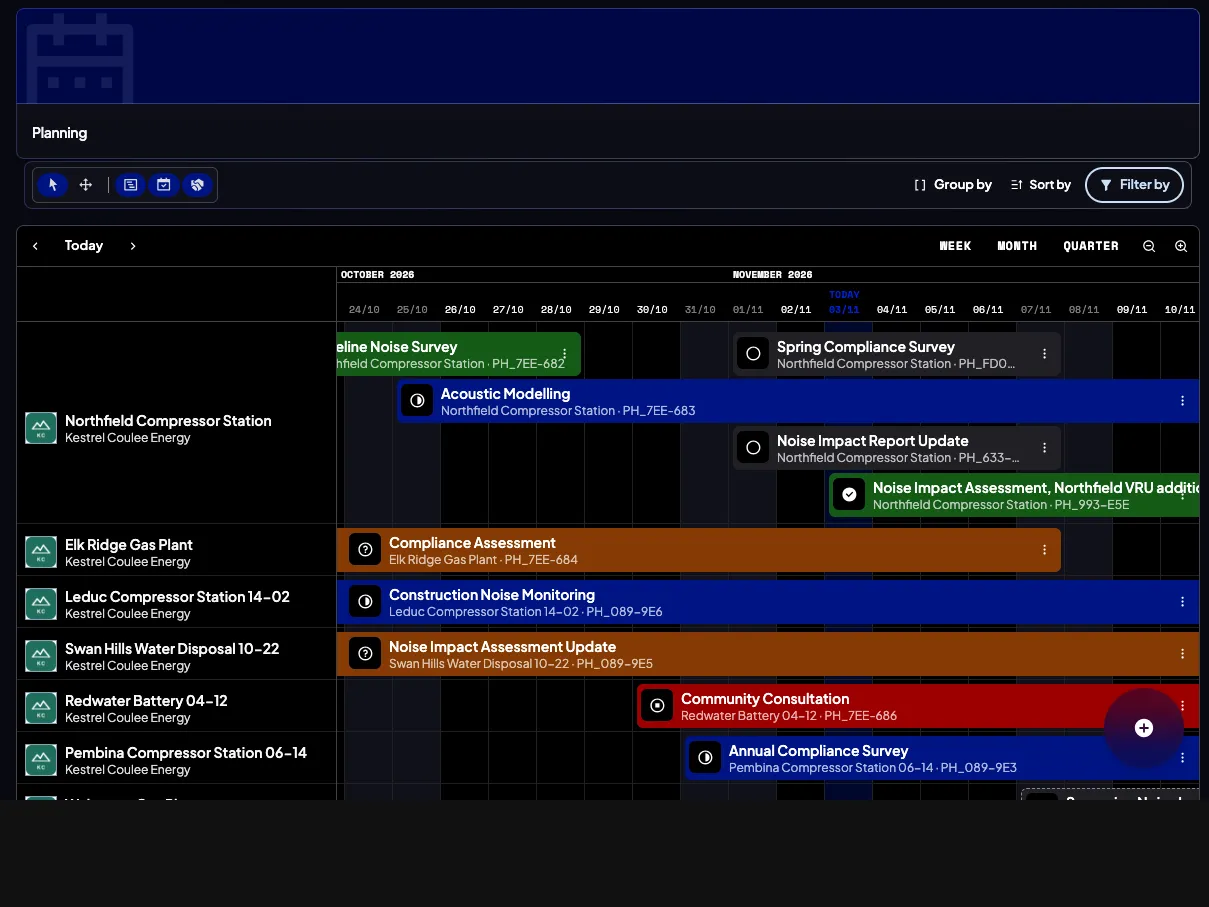
Clearer bars. Names are bold, a status tints only the bar, and the region flag sits on the bar's picture.Loads like a list. While a schedule loads, it shows placeholder rows, not No items scheduled.See others at work. Changes other people make show without a refresh, and records they select show their picture.
Discussions and Knowledge
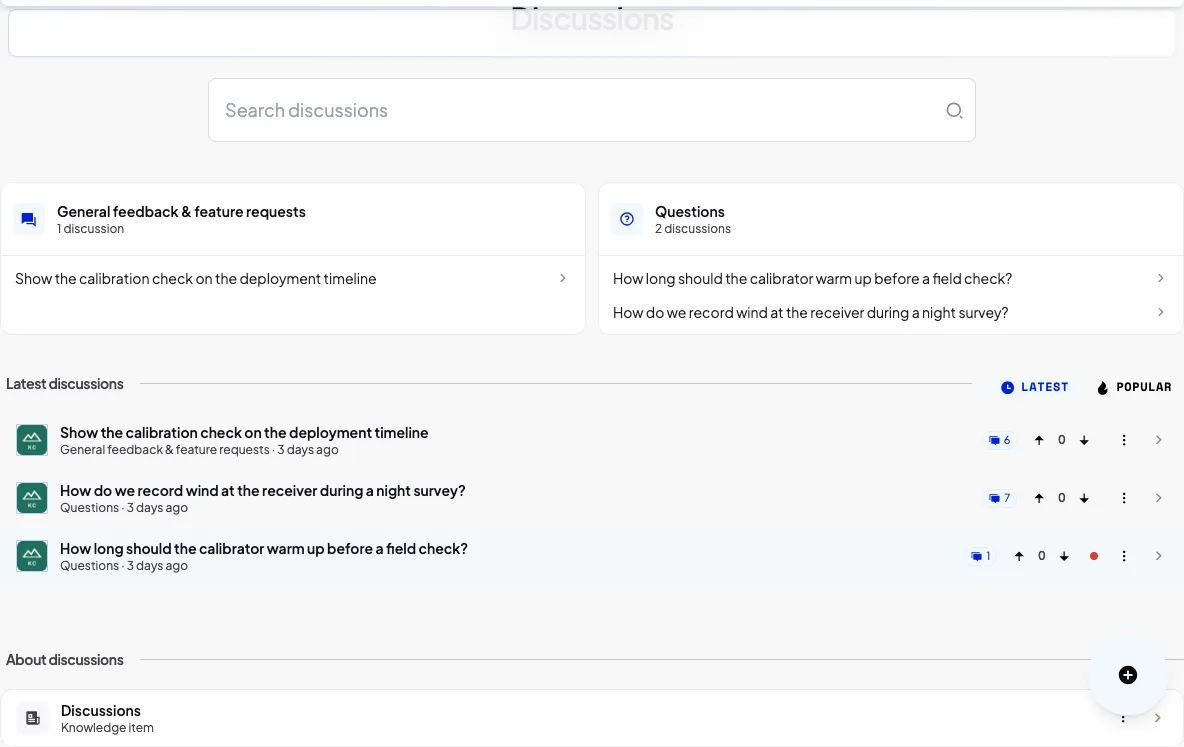
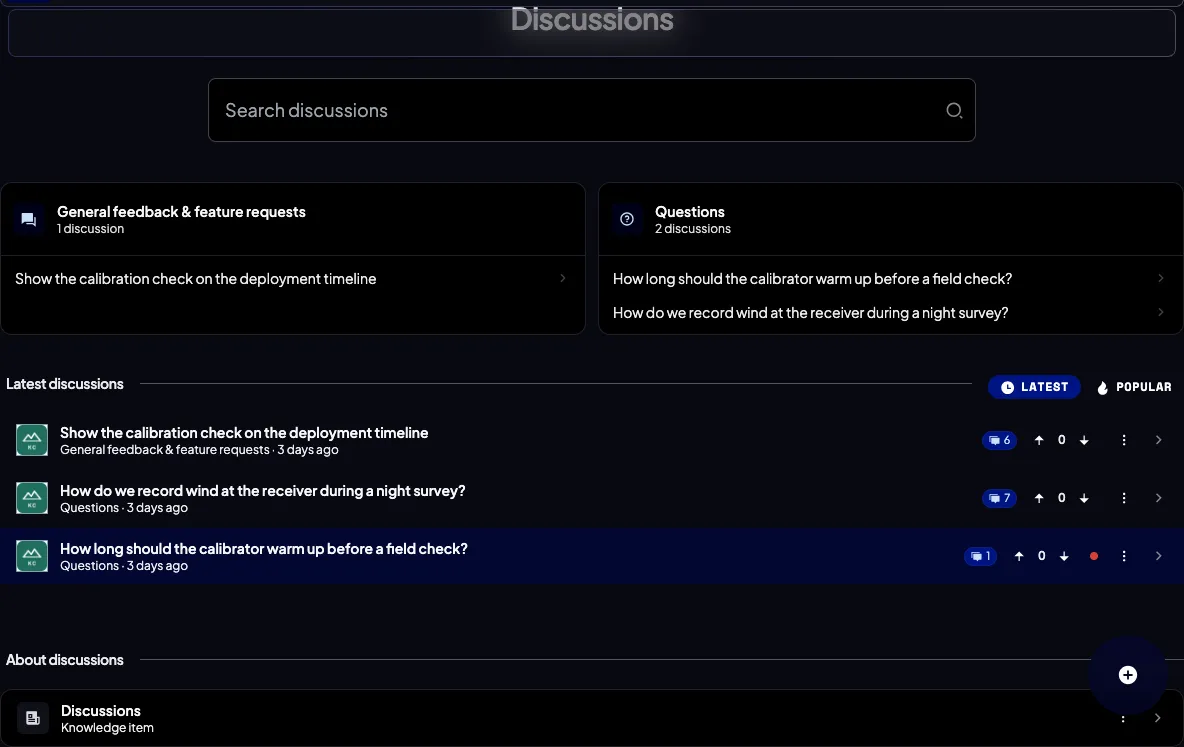
Discussions by category. Each category has a panel, and a thread opens over the list with a link you can share. Vote on posts, see reply counts and sort by Latest or Popular.Files and mentions. Attach up to 10 files to a post, 10 MB each and 25 MB in all, or paste images. A mention shows the person's picture and name.Articles that read like guides. Articles show their category, reading time, author and cover, with Jump to in Details. Knowledge opens on category panels, and one search finds articles and glossary terms. Every live article has a cover and describes the product as it is, and Knowledge leaves out articles written only for the mobile app.
Team, account and plan
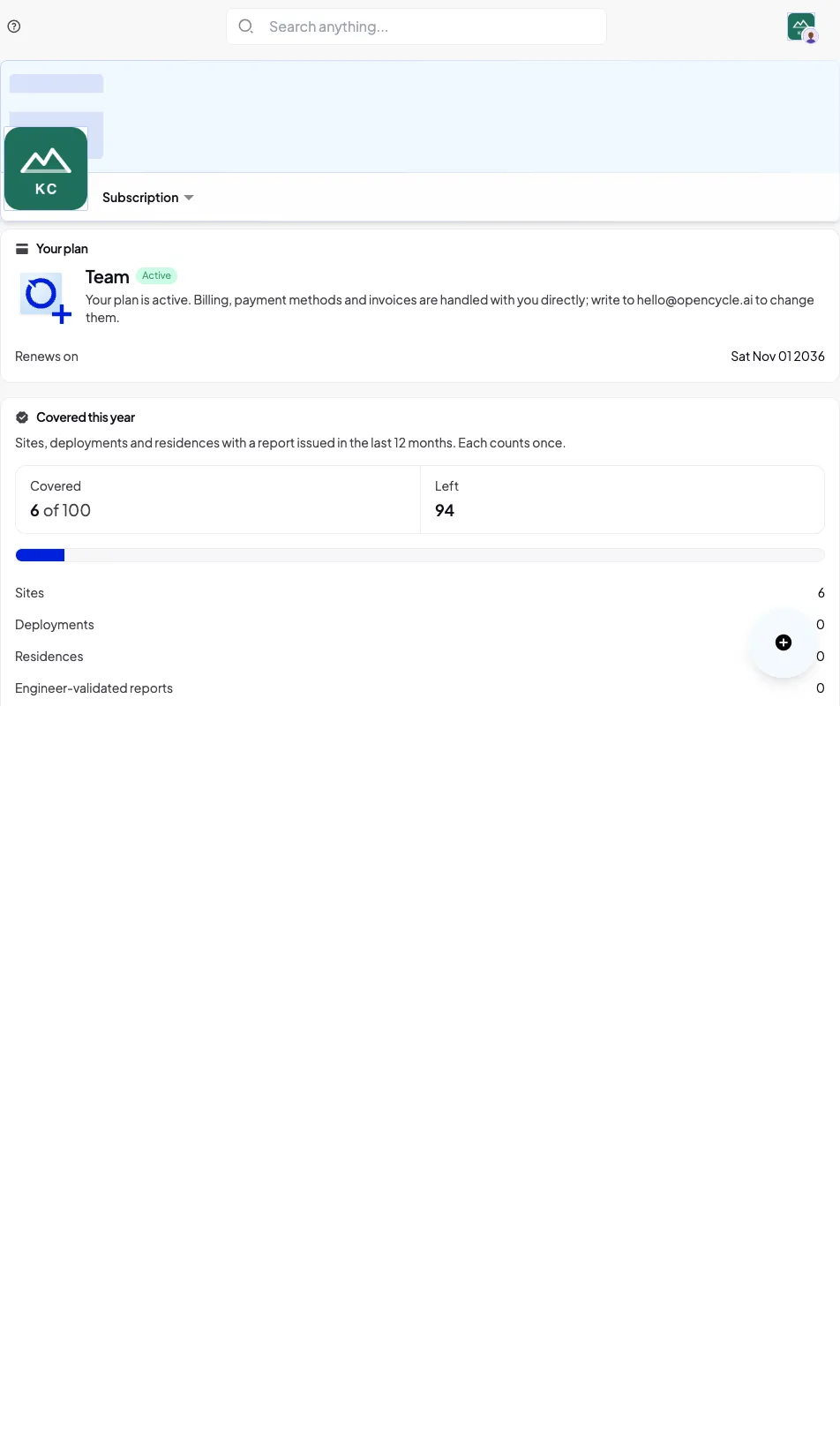
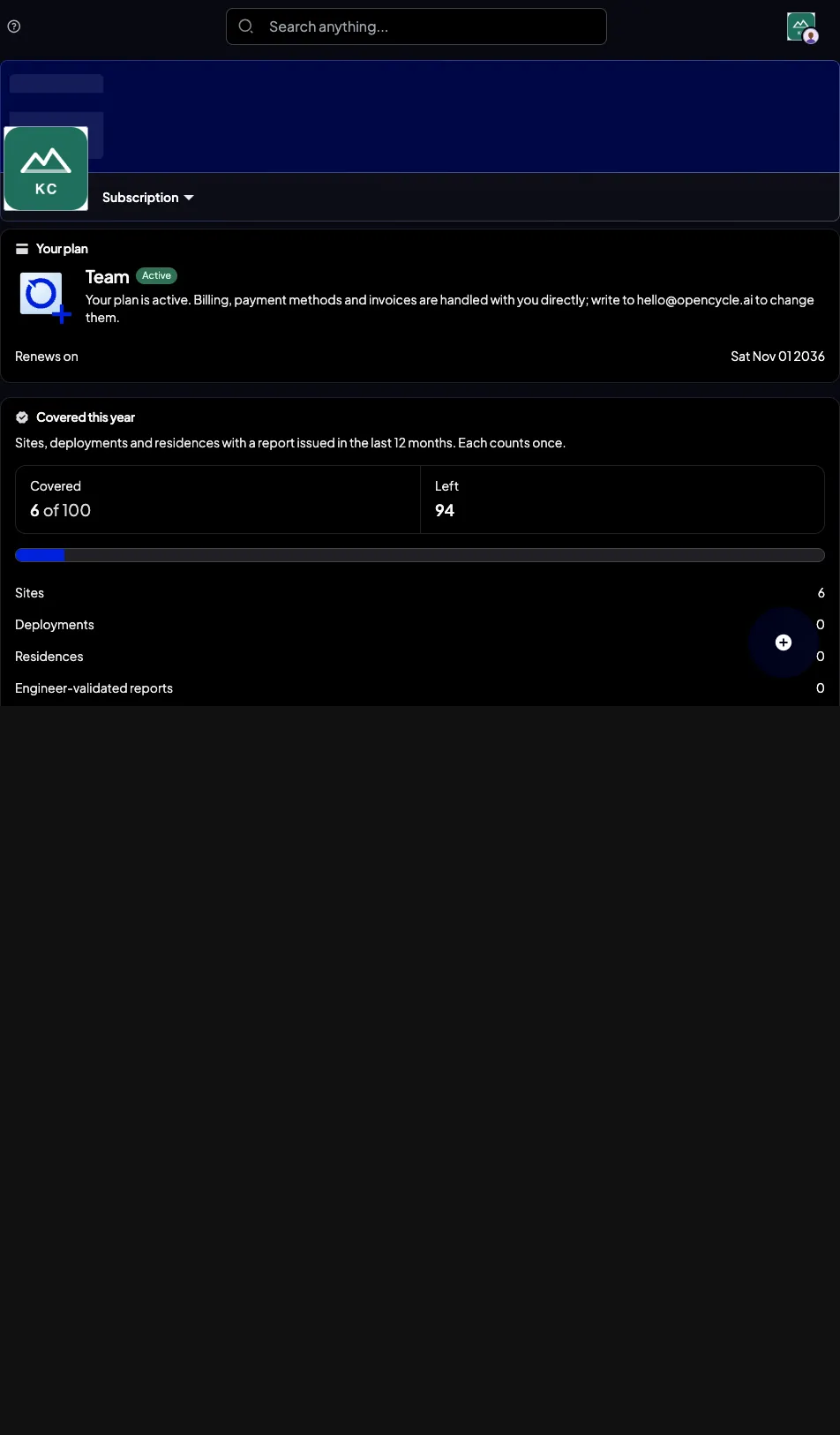
Your sidebar, your way. Hover a sidebar section to see its pages. Account → Sidebar sets your Start page, the order and Hidden pages, and Account → Appearance adds Glass effect and Compact cards.See what your plan covers. Team → Subscription shows your plan, renewal, annual fee and Covered this year, with Compare plans.Intelligence across regions. Team → Intelligence totals your spend across your regions, and a region whose budget is used reads Paused until it resets.
Equipment
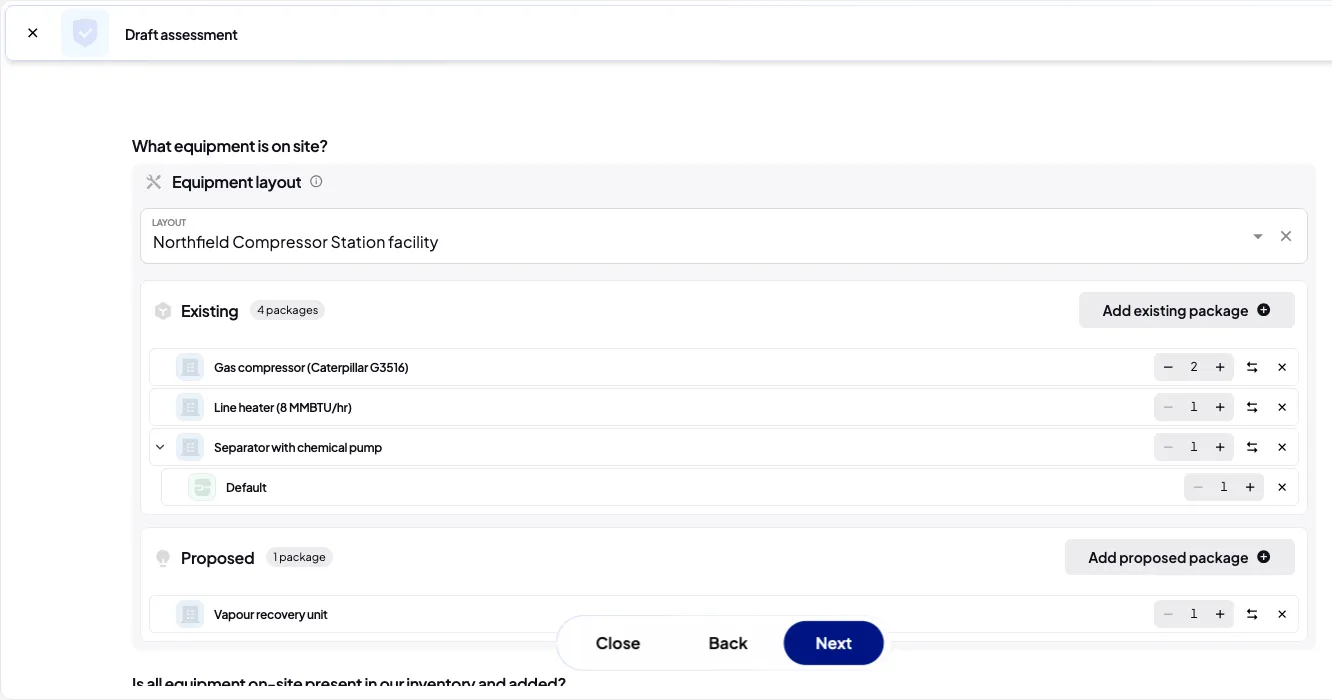
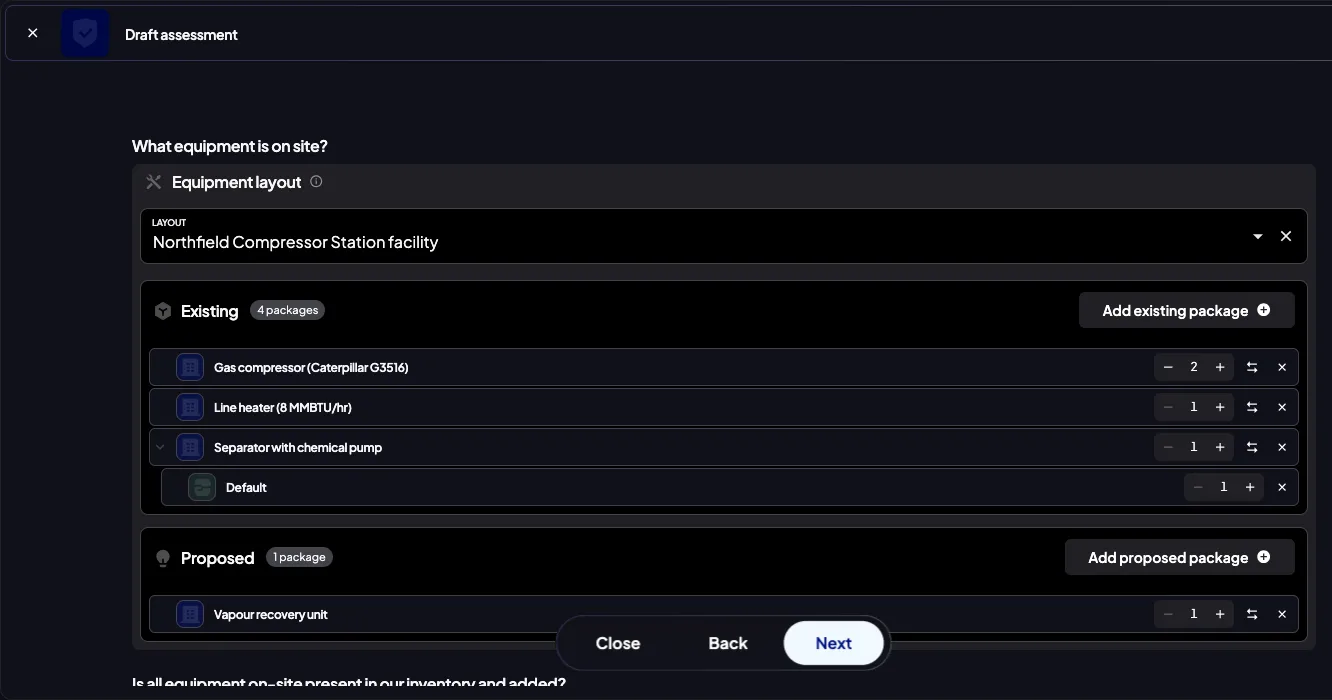
A clearer equipment builder. Search stays pinned, packages show their Manufacturer and photos, and Existing and Proposed sit in their own cards. The first image is the display photo.Shared layouts stay shared. A shared layout opens read-only, with Make an editable copy.Per-site changes, marked. A site's copy of catalog equipment shows Edited for this site, and Restore removed parts brings parts back.
Your workspace
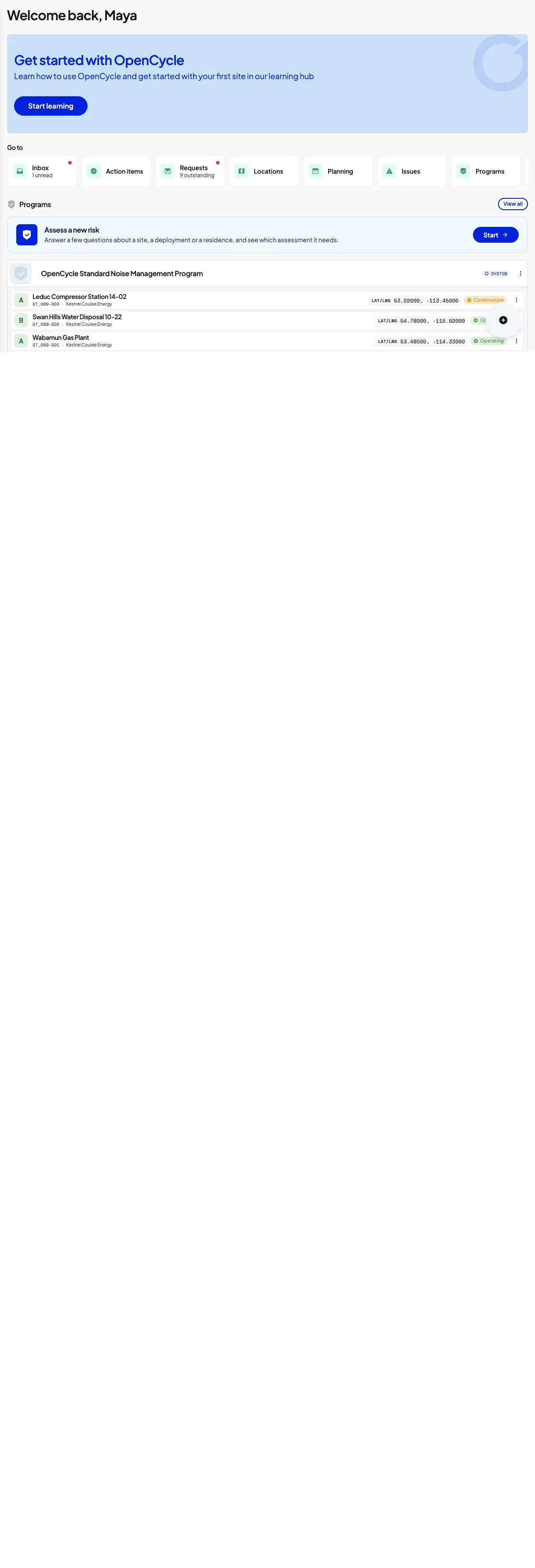
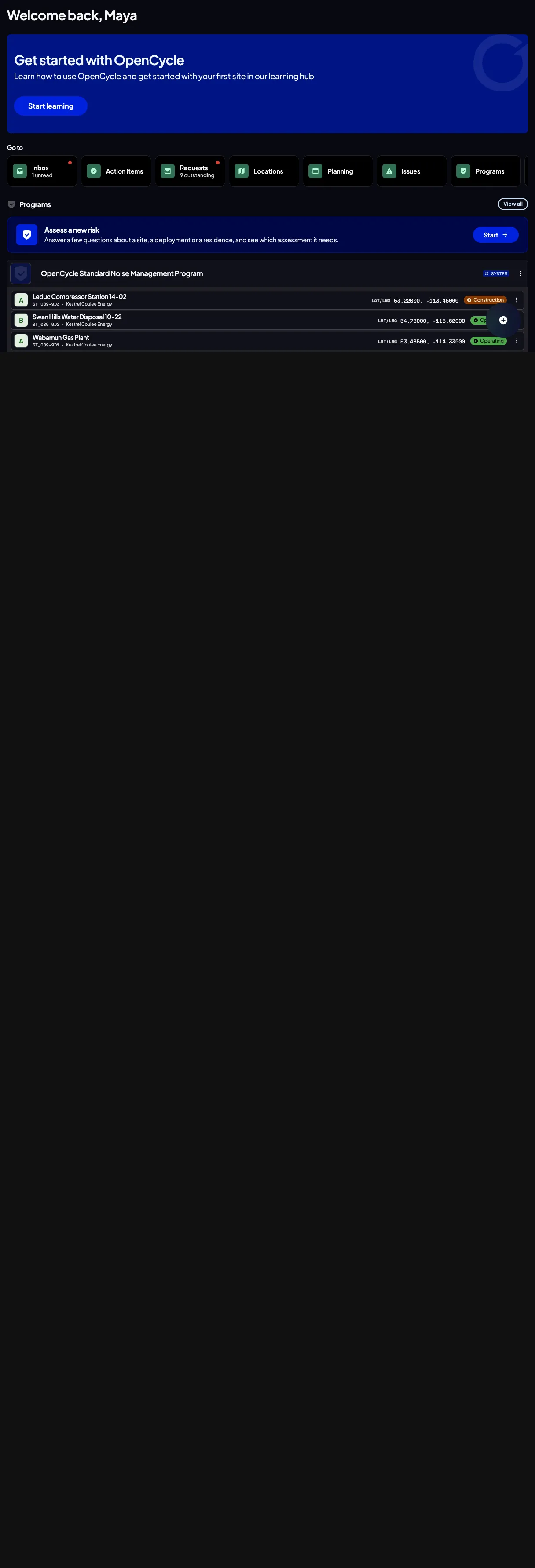
Home leads with what's next. Programs on Home starts with Assess a new risk, and the Go to row opens Inbox, Action items, Requests and your other pages.Search finds settings and knowledge. The search bar lists matching Team and Account settings pages and every knowledge item you can read.Steadier sign-in. A brief outage no longer signs you out, and after an error the page offers Try again and Report problem. Processing at the bottom of the sidebar tracks your jobs and lets you cancel one.
More changes
Monitoring reports
Your site, your time. The cover names your site, and dates, report titles and Document IDs use the site's day and time zone.Graphs and maps that read at a glance. Graphs show the levels as they were judged, such as 15-minute LAeq and LCeq steps under a permit, with a dBC limit beside the dBA limit. Report maps use larger labels and pin the residence each monitor stands for.Monitoring Summary. It reports measured levels only, with no limits or judgements, and adds a daily profile of the measured levels and the weather by day.
Residences
On the Locations map. Residences show on the Locations map. Choose Add residence, click the map, then Confirm.A page like a site's. A residence's page shows its location, parcel and facts beside the map, and the map shows which nearby sites reach it.
Sites from the regulator
Lease boundaries. AB and BC well sites can show their lease outline from the regulator, from AER OneStop for AB freehold leases and from the BC Energy Regulator permit area. A boundary you drew stays as you drew it.Sites where they are. When the regulator moves a well or facility point, the site's pin moves with it, but a pin you placed never moves. AB and SK facilities sit on the pad of the wells they serve, and about 2,000 AB wells licensed since June now have a site.Regulatory at a glance. Regulatory information shows the licence status, licensee and legal location, and the site's history shows each change the regulator makes.
Evidence
Photos and levels. An Evidence record shows its photos in a gallery, with Download original and Show details, and its sound levels as an octave chart in A, C or Z weighting. Upload audio adds the meter's audio.Sector and grouping. Each Evidence has a Sector section, where Not set uses the site's sector. The Evidence list groups by site, capture month or kind.
Records and record pages
Every record, counted. Records in the sidebar opens Agreements, Assessments, Attachments, Evidence, Forms and Invoices. Each lists every record you can open, with a count per group.Key facts first. Record pages lead with their key facts. The top bar has Change status, shows who has access (Change access) and counts Comments, Notes and Alerts.Linked records. Linked records sit in groups with Show all, and Evidence opens in the side panel. Drag the side panel's edge to resize it.
Deployments and safety
Find and schedule. Operations → Deployments has search, Sort, State and Groups filters. Choose Drag & drop to move a bar, or Multi-select to archive or grant access on many at once. A deployment can hold several phases.Safety on every deployment. Each deployment owes a safety form by its start date. Document safety asks ten scope questions first, and the Safety filter adds Nothing owed.Review and record. On the Safety coverage card, View submission opens the form with Review, Submit a new version and Export PDF. Only the owner or the deploying team reviews, nobody reviews their own form, and Reject needs a reason.
Requests
Bids. Published bids show under Bids. Approving one closes the request and rejects the others, and Rescind this request sits in the request's header.Board, filters and search. Requests has a Board view and Status, Sites, Deadline and Requester filters, and search finds a request by its site or team.Requests on Home. Home's Go to row shows Requests with its open count.
Issues and activity
Issues move on their own. An issue's stage follows its assignees and dates. Mark as blocked asks for a reason, which shows in Activity, and Request review asks for a check.Resolve issue. Record whether the issue was Mitigated, a Duplicate or Abandoned.Activity by person. Activity names who did each thing, and key events get their own row.
Forms and fields
Richer forms. Dates and times use the site's time zone, and forms add notes, switches and tiles. A form's PDF matches the page, with signatures, locations and the export day.Easier entry. Multi-pick fields show your picks as a list you can reorder, number fields have − and + buttons, and location fields open a map that applies a change only when you choose Use this location.Unsaved changes. Leaving a form lists the fields you changed, and closing after an autosave asks Keep your changes?
Also in this release
Share with the right access. Grant access adds several people, teams and groups at once, and View, Edit and Manage each say what they allow.Works on a phone. Side menus open full width, with a back arrow to return.Live monitor page. The public monitor page shows the latest level and its octave bands as they arrive.
Results that can change when you generate a report again
Fully isolated hours
When you generate a monitoring report again, an hour where every sample was isolated is left out of the results. Before, the report used the measured level for that hour.
ISO 9613-2:2024 removed
A report set to ISO 9613-2:2024 calculates with ISO 9613-2:1996 when you generate it again, so its modelled levels can change. Our engine is tested against ISO 9613-2:1996 with the ISO/TR 17534-3 test cases.
Meter files read together
When you generate a monitoring report again, a gap in a meter's OCS1 file is filled from its CSV file, and the reverse. Archived evidence no longer counts, so hourly results can change for evidence that has both files or that you archived.
Assumed ambient
When you generate an NIA again, the assumed ambient is the basic sound level less 5 dBA, as Directive 038, AUC Rule 012 and the BC guideline set out, and each residence is judged against its own limit. For temporary activities, the room left for your site's sound was 1.2 to 1.6 dB too small before.
Modelling fixes
When you generate an NIA or Screening NIA again, its modelled levels can change. The model now sets the ground factor for each part of a path, handles side paths around barrier corners, corrects two misprints in the standard's air absorption table and traces reflected paths with their true heights, distance and ground.
Fewer receivers
When you generate an NIA again, a building marked industrial, or confirmed to hold no dwelling, is no longer a residence, so the report can have fewer receivers.